
Your team's logins from IMC Power don't carry over. Before anyone on your team can use IMC Vendor Portal, an account admin needs to add each user. Here's how.
Log into IMC Vendor Portal and click User Admin in the left-hand navigation, under Manage.
Click Add user, top right of the Users list.
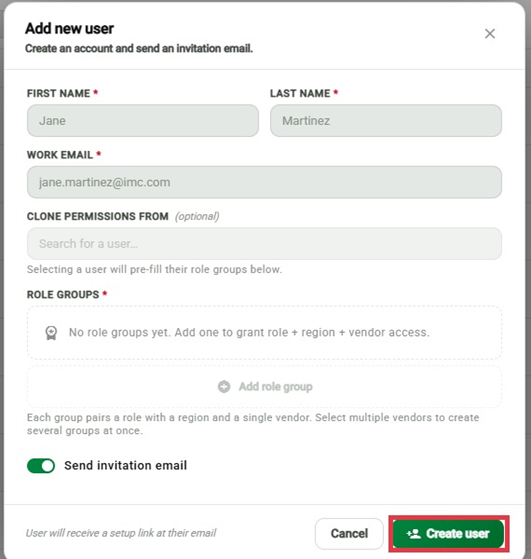
Enter the user's First Name, Last Name, and Work Email. All three are required.
Optional — Clone Permissions From: search for a teammate with similar access and it pre-fills their role groups for you, so you don't have to build them from scratch.
Add at least one Role Group. Click Add role group and choose a Role, Region, and Vendor — each group pairs all three together. Selecting multiple vendors in one group creates several role groups at once.
Leave Send invitation email turned on (it's on by default) so the new user gets a setup link by email. If you'd rather add your users now and invite them later, uncheck Send invitation email - the user is added to the portal without an email going out, and you can send their invitation whenever you're ready by finding them in the Users list and clicking Resend emails.
Click Create user.
Tip: if someone doesn't get their invite email, find them in the Users list and click Resend emails.